# Google Cloud manual setup
Connect Google Cloud to Maple by creating each resource yourself in the Google Cloud console, without running a script.
Manual setup creates the same resources as the [setup script](/docs/integrations/gcp), by hand in the Google Cloud console. It takes about 20 minutes.
In Maple, open **Integrations → Google Cloud**, click **Connect Google Cloud**, choose the scope and what to collect, then choose **Manual setup** in **Method** and click **Continue**. The dialog lists the steps below with this connection's names and values: copy them from there. Each step has an **Open in console** link to the right page.
## Roles you need
| You connect | Roles you need |
| --------------- | --------------------------------------------------------------------------------------------------------------------------------------------------- |
| A project | Owner on the project. |
| A folder | Owner on the host project. On the folder: Logs Configuration Writer for the log sink, and Folder IAM Admin for the read-only roles. |
| An organization | Owner on the host project. On the organization: Logs Configuration Writer for the log sink, and Organization Administrator for the read-only roles. |
## Step by step
The screenshots show a project connection. Steps 2 to 7 are for **Log forwarding**, the rest for **Metrics and resources**: the dialog leaves out what you didn't choose. A folder or organization has one more step, Service Usage Consumer on the host project.
### 1. Enable the APIs
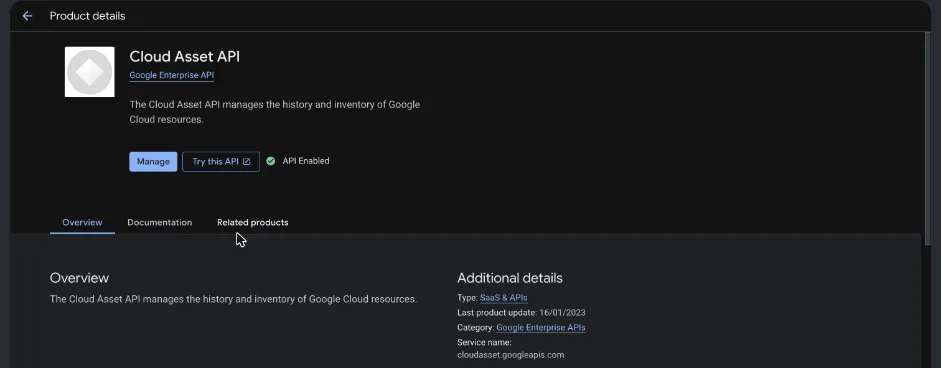
In **APIs & Services → Library**, search for each API the dialog lists, open it and click **Enable**. An API that shows **Manage** and **API Enabled** is on already. `pubsub.googleapis.com` is the **Cloud Pub/Sub API**, not Pub/Sub Lite.
An API that is already on: Manage and API Enabled.
### 2. Create the Pub/Sub topic
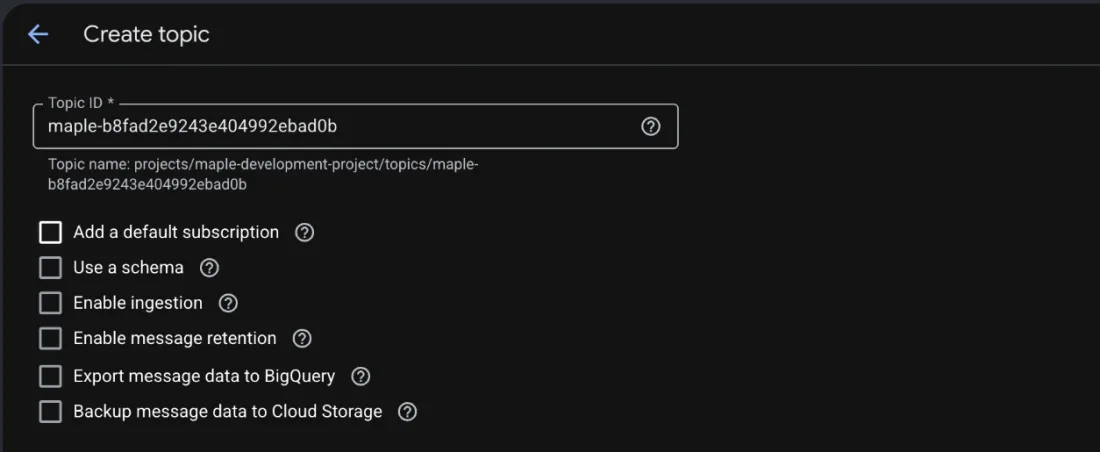
In **Pub/Sub → Topics**, click **Create topic**. Paste the **Topic ID**, untick **Add a default subscription**, and click **Create**. The new topic warns that messages will be lost: the subscription in step 4 takes care of that.
Untick Add a default subscription: it would keep a copy of every log that nobody reads.
### 3. Create the push service account
Pub/Sub signs each push to Maple as this account.
1. In **IAM & Admin → Service accounts**, click **Create service account**.
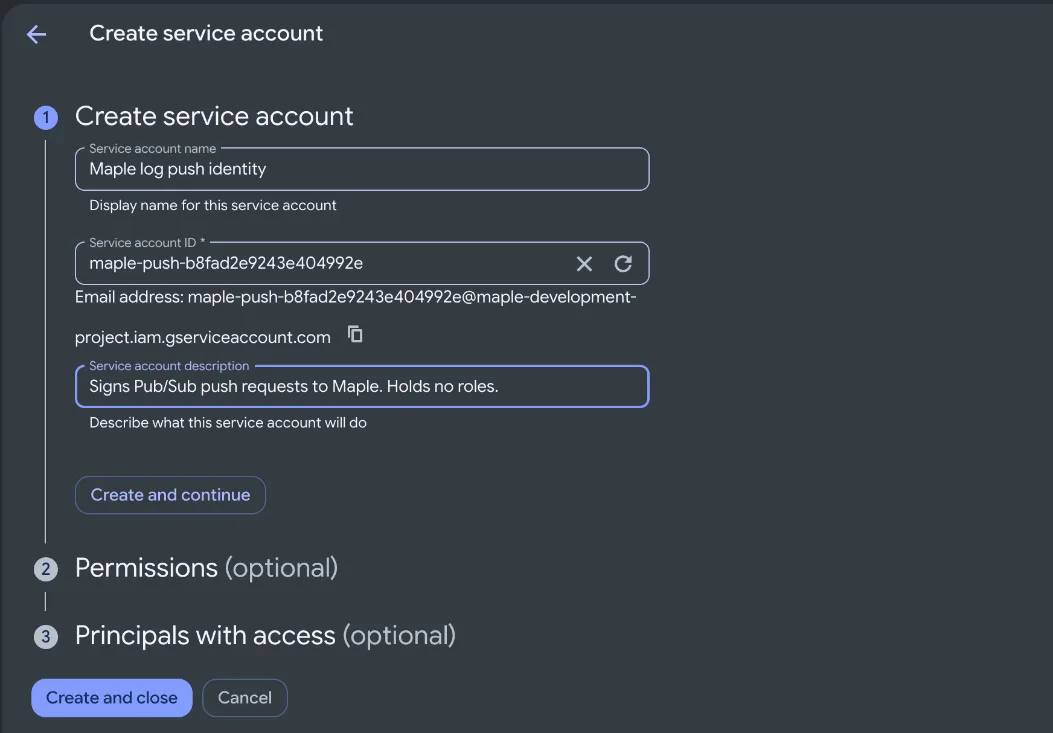
2. Paste the **Service account name**, then the **Service account ID**: the console fills the ID from the name, so replace it. Paste the description and click **Create and close**, without roles.
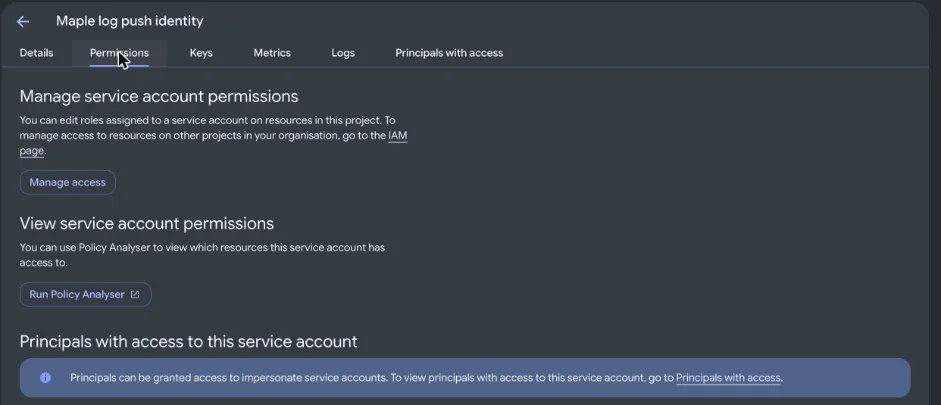
3. Open the new account, go to its **Principals with access** tab, not **Permissions**, and click **Grant access**.
4. In **New principals**, type `gcp-sa-pubsub` and pick **Cloud Pub/Sub Service Account for Project …**. The role picker starts on **Service Account Admin**: replace it with **Service Account Token Creator**, and click **Save**.
Step 4 is only needed where the Pub/Sub service agent was created before April 8, 2021, and harmless elsewhere. The grant is listed only with **Include Google-provided role grants** ticked.
Replace the ID the console suggests with the one from the dialog, then Create and close.Grants on the account itself live under Principals with access.The Pub/Sub service agent gets Service Account Token Creator.
### 4. Create the push subscription
In **Pub/Sub → Subscriptions**, click **Create subscription** and set:
- **Subscription ID**, and the topic from step 2 under **Select a Cloud Pub/Sub topic**.
- **Delivery type: Push**, with the **Endpoint URL** from the dialog.
- Tick **Enable authentication**, pick the push service account from step 3, and paste the endpoint again as **Audience**. The console marks Audience optional; Maple needs it.
- Tick **Enable payload unwrapping** and leave **Write metadata** unticked. Without unwrapping Maple can't read what Pub/Sub sends and drops it.
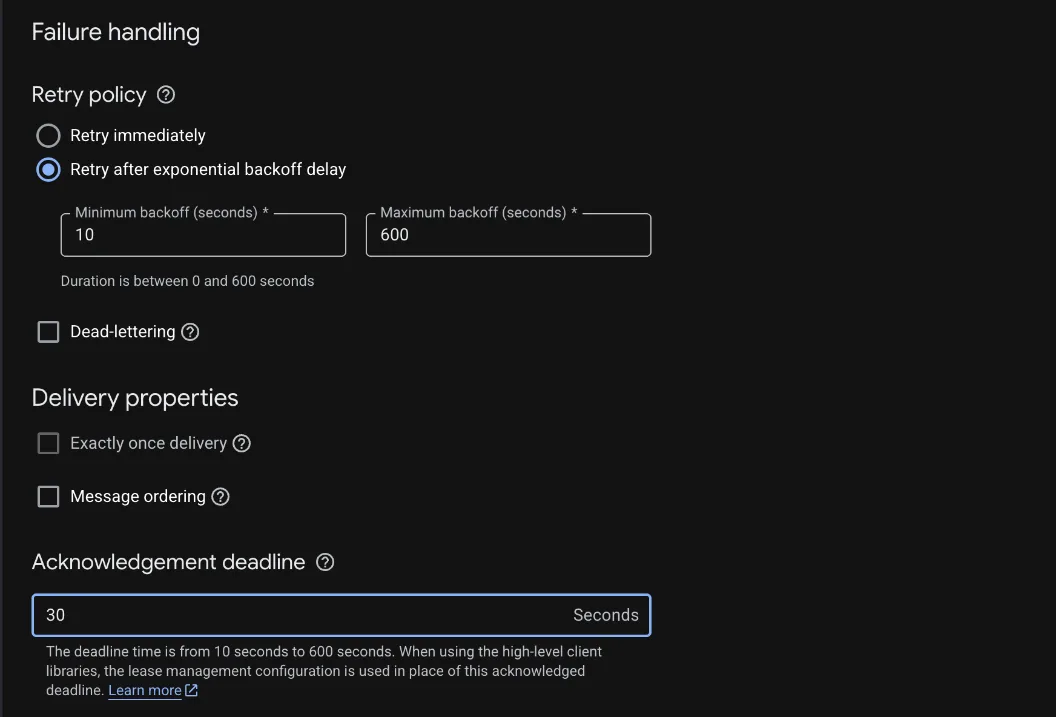
- Under **Failure handling → Retry policy**: **Retry after exponential backoff delay**, 10 to 600 seconds (the defaults).
- **Acknowledgement deadline**: 30 seconds.
- **Message retention duration**: 1 day, 0 hours, 0 minutes.
- **Expiry period**: **Never expire**. The default, 31 days, deletes an idle subscription.
Click **Create**.
Push delivery, signed by the push account, with payload unwrapping on.Retry policy and acknowledgement deadline.One day of retention and Never expire.
### 5. Create the Log Router sink
In **Logging → Log router**, click **Create sink**:
1. **Sink details**: paste the **Sink name**, click **Next**.
2. **Sink destination**: **Select sink service** → **Cloud Pub/Sub topic**, pick the topic from step 2, click **Next**.
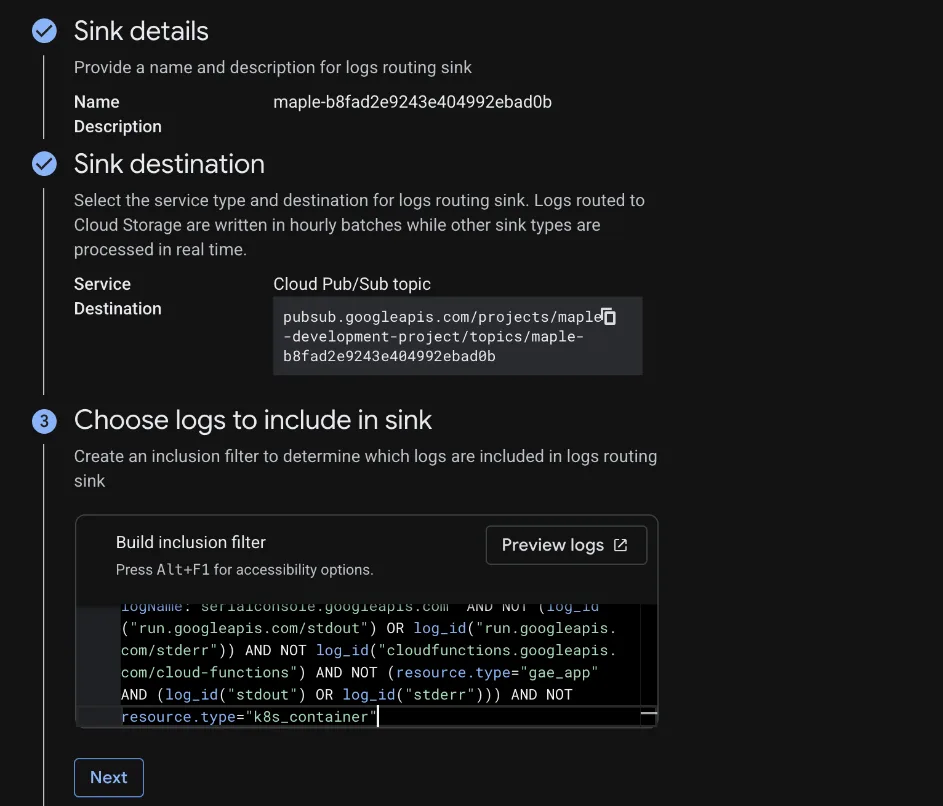
3. **Choose logs to include in sink**: paste the filter from the dialog into **Build inclusion filter**, unchanged, and click **Next**.
4. Skip **Choose logs to filter out of sink** and click **Create sink**.
A new sink takes a few minutes to start forwarding. Entries written in that time are dropped, not delayed.
Paste the filter as the dialog shows it.Ready to create: Cloud Pub/Sub topic, the filter, no exclusions.
### 6. Let the sink publish to the topic
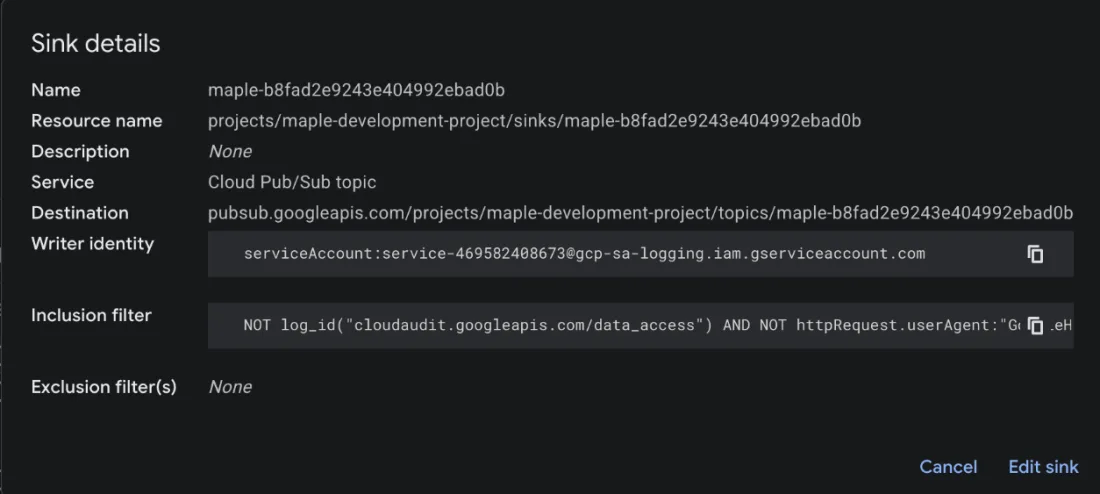
1. In **Log router**, open the sink's **⋮** menu → **View sink details** and copy its **Writer identity**.
2. In **Pub/Sub → Topics**, tick the topic. In the info panel on the right (**Show info panel** if it is hidden), open **Permissions** → **Add principal**.
3. Paste the writer identity **without its leading `serviceAccount:`**: with it, the console refuses the principal. Pick the role **Pub/Sub Publisher** and click **Save**.
Grant it on the topic, not on the IAM page, where it would cover every topic in the project.
The writer identity, in View sink details.The topic's own Permissions, in the info panel.The identity without serviceAccount:, with Pub/Sub Publisher.
### 7. Send a test message (optional)
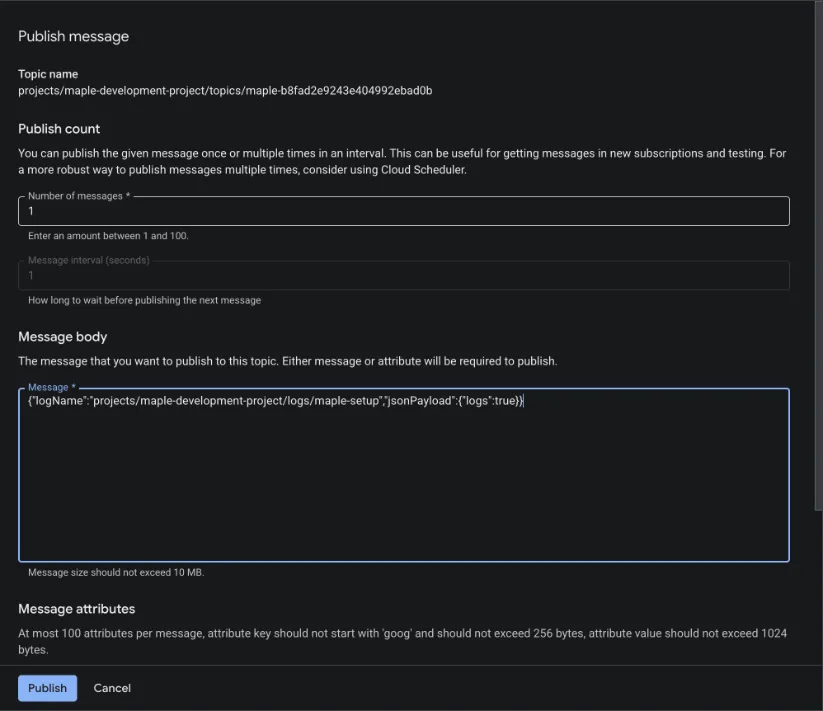
On the topic's **Messages** tab, click **Publish message**, paste the dialog's message body as **Message**, and click **Publish**. Maple confirms log forwarding within seconds. The message proves the topic, subscription and push; the sink is proven by the first real log.
The test message from the dialog.
### 8. Create the read-only service account
Maple reads metrics and resources as this account, with short-lived tokens and no key. In **IAM & Admin → Service accounts**, click **Create service account**, paste the name, replace the ID the console fills in, and click **Create and close**.
The read-only account, created without roles.
### 9. Let Maple use the read-only account
Open the read-only account → **Principals with access** → **Grant access**. Paste Maple's service account from the dialog as **New principals**, replace the preselected **Service Account Admin** with **Service Account Token Creator**, and click **Save**.
If an organization policy restricts members to your domain, Google refuses this grant and nothing is left behind: see [Domain restricted sharing](/docs/integrations/gcp#domain-restricted-sharing).
Maple's account gets Service Account Token Creator on the read-only account.
### 10. Grant the read-only roles
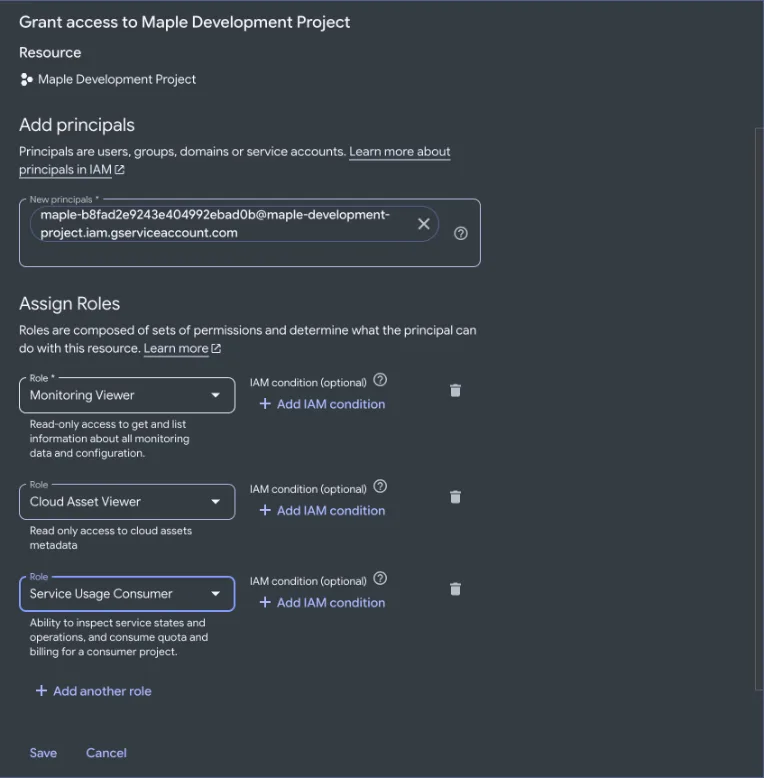
In **IAM & Admin → IAM**, click **Grant access**, paste the read-only account as **New principals**, and add **Monitoring Viewer**, **Cloud Asset Viewer** and **Service Usage Consumer**, each after the first with **Add another role**. Click **Save**. Cloud Monitoring only answers for a host project with billing linked.
The three read-only roles.
## Folders and organizations
Everything goes in the host project except these, which you do on the folder or organization (the dialog's links open them there):
- **The Log Router sink.** Choose **Other resource** as the sink service and paste the full destination from the dialog, `pubsub.googleapis.com/projects/HOST_PROJECT/topics/…`: the picker lists only the current project's topics. Choose **Include logs ingested by this folder (organization) and all child resources**, not **Intercept logs**, which keeps those logs from the projects' own sinks and log buckets. The writer identity in step 6 is the folder's or organization's own.
- **Monitoring Viewer and Cloud Asset Viewer** on the folder or organization. **Service Usage Consumer** goes on the host project, as its own step in the dialog.
## Confirm the connection
A manual setup sends Maple no report. Maple confirms each part by its first data:
- **Log forwarding** by the first push Maple receives: within seconds with the test message, or within a few minutes of the sink.
- **Metrics and resources** by the first metrics read, a few minutes after step 10. Until then the connection may say Maple can't sign in as the read-only account yet.
## Removing
When you switch **Log forwarding** off, the dialog lists what to delete, in this order, each with an **Open in console** link:
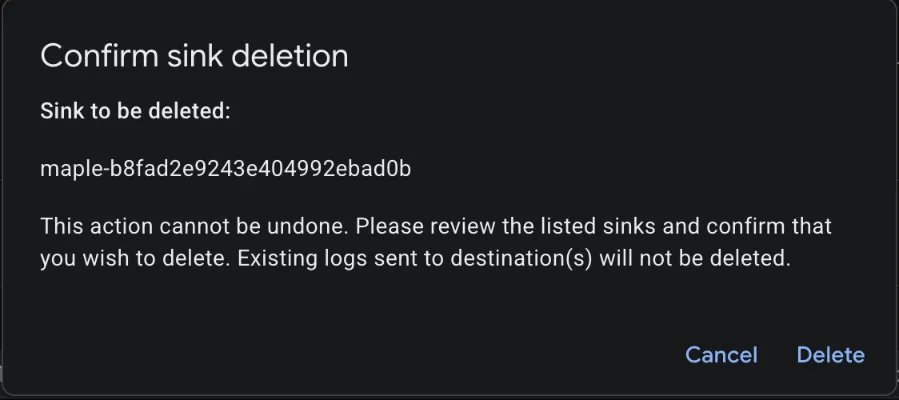
1. The log sink: **⋮ → Delete sink**. Then wait two minutes: Google keeps routing to the topic for over a minute, and a missing topic gets your project a sink error.
2. The subscription.
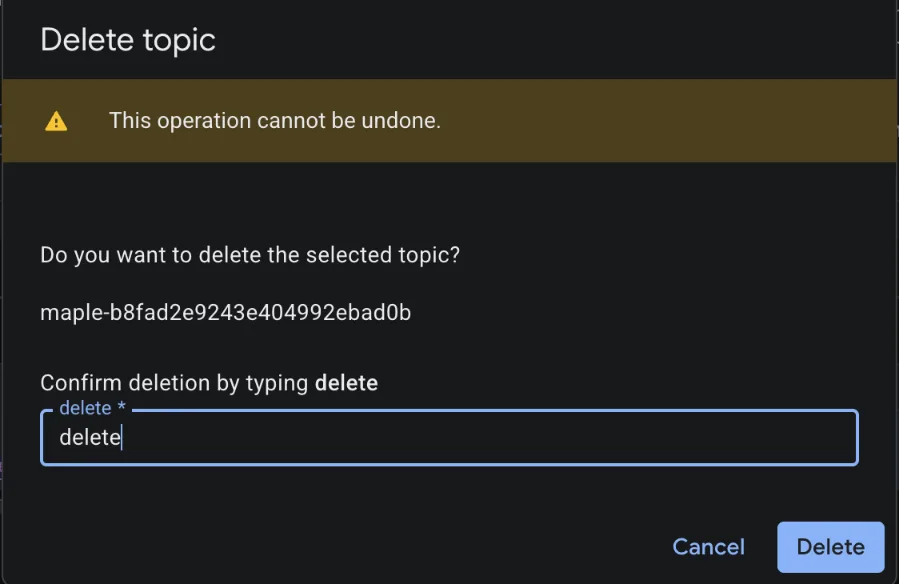
3. The topic. The console asks you to type `delete`.
4. The push service account.
Then click **I've removed them** in the dialog: Maple can't see a removal and takes your word for it.
The sink goes first.Deleting the topic asks you to type delete.
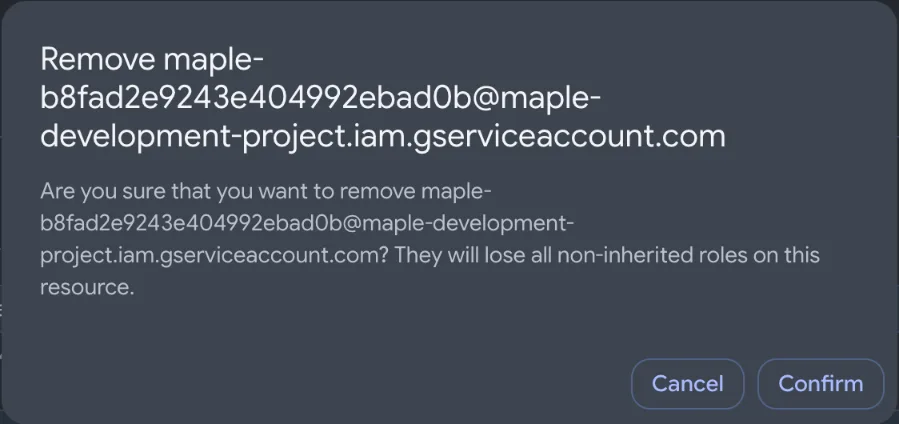
A connection collects at least one of the two. To stop collecting altogether, open the connection's menu → **Disconnect**: under **Delete them in the console instead** it lists everything still set up. For the read-only account, remove its roles in **IAM & Admin → IAM** (tick it → **Remove access**), then delete the account.
Removing the read-only account's roles before deleting it.
Leave **Logs Writer** for a sink's writer identity on the host project: every sink there writes as that identity.